


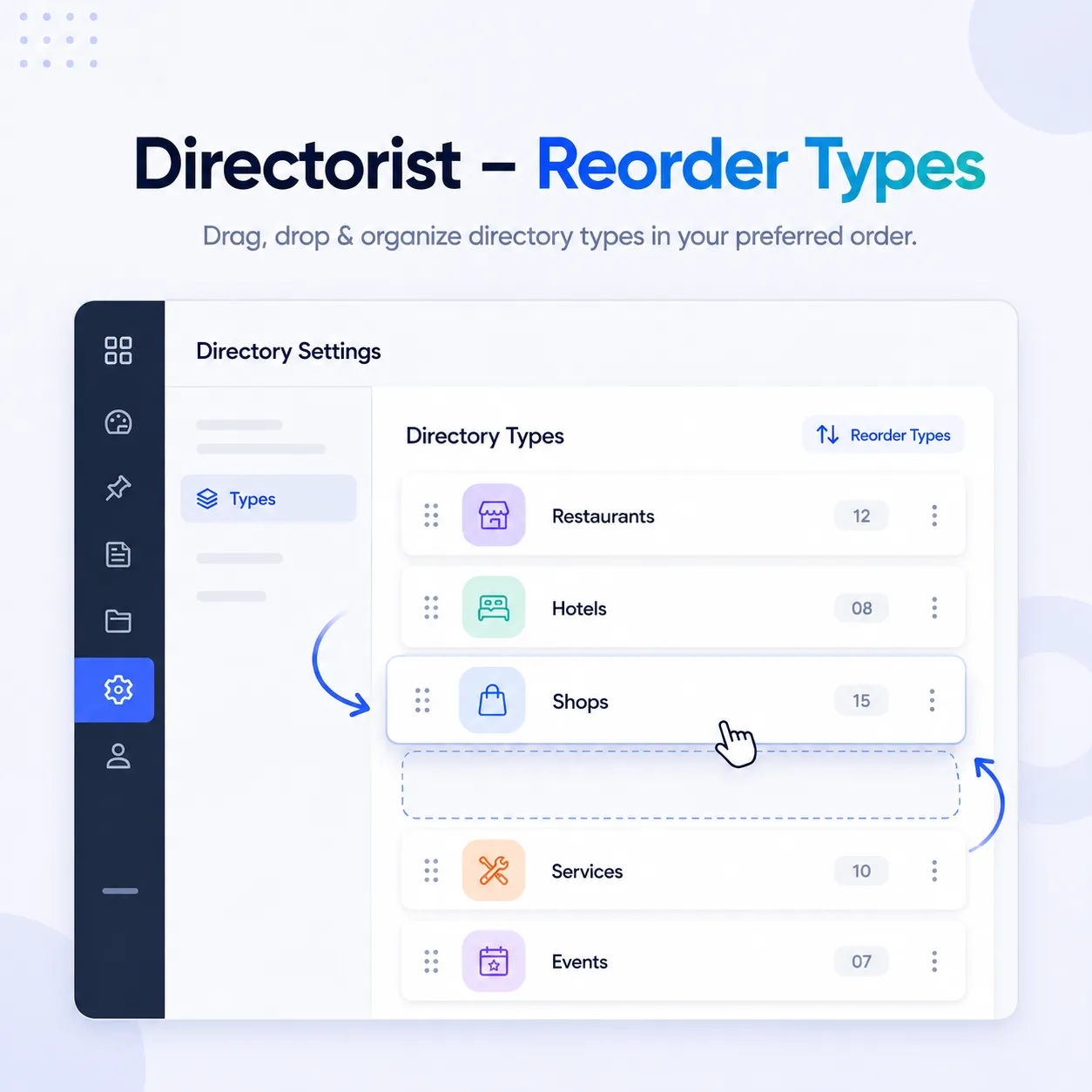
Directorist - Reorder Types
Drag and drop to customize Directorist directory type order across listing forms, archives, and search forms.
Directorist – Reorder Types
Directorist – Reorder Types provides a simple drag-and-drop interface for controlling the display order of your Directorist directory types.
When a website contains multiple directory types, Directorist may display them in an order that does not match your business priorities. This plugin lets administrators arrange those directory types without editing templates, changing term names, or writing custom code.
The selected order is applied consistently across:
- Add Listing directory selection
- Listing archive directory navigation
- Search form directory navigation
Key Features
- Easy drag-and-drop ordering
- Integrates directly into the Directorist admin menu
- Uses one consistent order across supported frontend templates
- Stores the selected order in the WordPress options table
- Automatically includes newly created directory types
- Safely handles deleted directory types
- Validates permissions and submitted directory IDs
- Uses update-safe Directorist template overrides
- Lightweight and focused, with no unnecessary settings
Requirements
Before using the plugin, make sure:
- WordPress 5.2 or later is installed
- Directorist is installed and active
- Directorist Multi-directory functionality is enabled
- At least two directory types have been created
Installation
- Upload the plugin folder to the
/wp-content/plugins/directory. - Open Plugins in your WordPress dashboard.
- Find Directorist – Reorder Types.
- Select Activate.
The plugin requires Directorist and only initializes when Directorist is active.
How to Reorder Directory Types
- Sign in to your WordPress dashboard.
- Open Directorist → Directory Type Order.
- You will see a list of all available directory types.
- Drag each directory type into your preferred position.
- Select Save Order.
The new order will immediately be used on supported Directorist pages.
Where the Order Appears
Add Listing
When users start adding a listing and must choose a directory type, the available types appear in your configured order.
Listing Archives
The directory type navigation displayed above Directorist archive results follows the saved order. Directorist’s optional “All” item remains at the beginning.
Search Forms
Directory type choices inside Directorist search forms also use the same order, providing a consistent experience throughout the website.
Adding or Removing Directory Types
Newly created directory types are automatically added after the directory types already included in your saved order. Visit the ordering page whenever you want to move a new type into a different position.
If a directory type is deleted, it will no longer appear on the frontend. Obsolete directory IDs are removed when the order is saved again.
Frequently Asked Questions
Do I need to edit any Directorist files?
No. The plugin provides its own template overrides, so Directorist’s core files remain unchanged.
Will the order remain after updating Directorist?
Yes. The order is stored separately in the WordPress options table, and the templates are maintained by this extension.
Can different templates use different orders?
The plugin currently uses one shared order across add-listing forms, archives, and search forms. This keeps directory type navigation consistent throughout the website.
What happens before I save an order?
Directorist’s existing directory type order remains unchanged until an administrator saves a custom order.
Who can change the order?
Only WordPress administrators with the manage_options capability can access the ordering page and save changes.
What option stores the order?
The ordered directory type IDs are stored under:
directorist_reorder_types_orderSupport
For additional information and updates, visit wpXplore.
Related Products

Auto WebP Converter
Automatically converts JPEG and PNG uploads to WebP before WordPress stores them. Faster pages, smaller backups, zero duplicates.

Directorist - Advanced Fields
Adds advanced custom fields like iframe, shortcode, video, editor, featured checkbox, repeater to Directorist listing forms and displays.

Directorist - Advanced Social Links
An extension for Directorist plugin that adds advanced social networking options to listing forms and single listing pages.

Directorist - Affiliate
Turn visitors into promoters with referral links, tracked commissions, flexible payouts, and a complete affiliate dashboard for Directorist.

Directorist - Bulk Actions
Streamline directory management with powerful bulk operations for listings and taxonomies. Import, export, update, and delete at scale.

Directorist - Category Based Tags
Filter Directorist tags by selected categories on tag edit, add listing, and search forms with optional fallback behavior.