


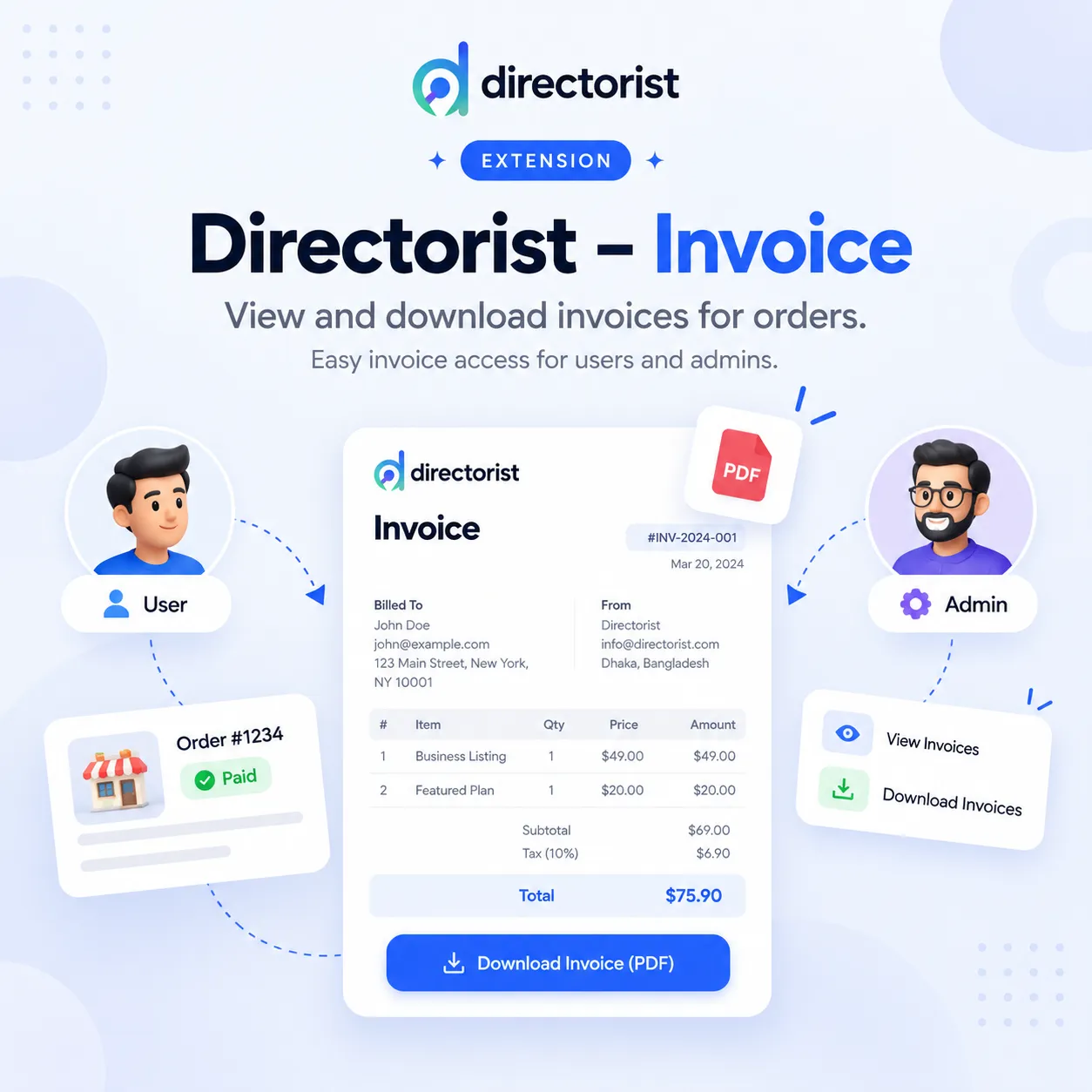
Directorist - Invoice
Generate branded PDF invoices for Directorist purchases and bookings, with secure viewing and downloads for customers and administrators.
Directorist Invoices lets customers and administrators view or download PDF invoices for eligible Directorist purchases. This guide explains how to set up the invoice, add customer details, and find the PDF.
Before you start
Your site needs WordPress 6.5 or newer, PHP 7.4 or newer with the DOM, iconv, and mbstring extensions, and an active Directorist plugin. WooCommerce and Directorist Booking are needed only if you want invoices for WooCommerce booking orders.
To install a release package:
- Activate Directorist.
- In WordPress admin, open Plugins → Add New → Upload Plugin.
- Choose the
directorist-invoice-<version>.zipfile, install it, and activate Directorist – Invoices.
If you are upgrading, install the new release package over the existing plugin when WordPress prompts you to replace it. Your invoice settings and customer profile details are saved in WordPress, not in the plugin files.
In WordPress admin, open Directorist → Settings → Extensions → Invoice. Fill in the Business details section and save your changes.
| Setting | Where it appears |
|---|---|
| Business name | At the top of the PDF and in the From section. The site name is used if no name is set. |
| Business logo | At the top of the PDF. Choose an image from the WordPress Media Library. |
| Business address | In the From section. You can enter multiple lines. |
| Contact email | In the From section. The WordPress admin email is used if no email is set. |
| Tax ID | Under your business details on the PDF. This is separate from the customer’s Tax ID. |
Use a PNG, JPEG, GIF, or WebP logo of 2 MB or less. SVG files are not supported. If no invoice logo has been saved, the site’s WordPress custom logo is used when available.
On the same Invoice settings page, the Customer details section has three switches:
| Switch | What it controls |
|---|---|
| Show customer email | Shows or hides the customer’s email on the PDF. |
| Show customer phone | Shows or hides the customer’s phone on the PDF. |
| Show customer Tax ID | Shows or hides the customer’s Tax ID on the PDF. |
All three switches are on by default. A switch affects invoice display only: it does not remove the field from the customer’s Directorist profile. The customer address appears on the PDF whenever it is available and has no switch.
Customers can open the frontend Directorist dashboard → Profile page, enter or update their Email, Phone, Address, and Tax ID, then select Save Changes. Directorist already provides the first three fields; this extension adds Tax ID to the same form.
For an account holder, the invoice takes email, phone, address, and Tax ID from the current Directorist profile when those values are available. For a WooCommerce booking, order billing details can fill in missing profile details. A customer Tax ID left blank will not appear on the invoice, even when its display switch is on.
Profile changes also affect older invoices. PDFs are generated when viewed or downloaded, so an invoice opened after a profile update can show the new customer details.
- Open Directorist → Orders.
- Find a supported order and open its Actions menu.
- Select the invoice icon to View invoice or the download icon to Download PDF.
The current Directorist order detail view also shows both icons. Older Directorist order posts have invoice links in their post row actions. There is no separate Invoice column or Directorist → Invoice admin page.
- Sign in and open the frontend Directorist dashboard.
- Open Order History and use the invoice or download icon beside an eligible current order. You can also open the Invoices tab to find eligible purchases, including older orders and account-linked WooCommerce bookings.
- Hover over an icon to see its title. The invoice icon opens the PDF in a new browser tab; the download icon saves it.
Supported current Directorist order receipts also show these icons. The Invoices tab shows order date, purchase, total, status, and invoice actions, with pagination for longer histories.
| Order source | Admin access | Customer access |
|---|---|---|
| Current Directorist order | Directorist → Orders Actions menu and order details | Order History, Invoices, and supported receipts |
| Older Directorist order post | Legacy order post row actions, when that screen is available | Invoices tab |
| WooCommerce order linked to Directorist Booking | No icon is added to the WooCommerce Orders screen | Invoices tab when linked to the customer’s account |
Only the signed-in order owner or an administrator with permission to manage Directorist orders can access a PDF. Sharing a link does not give another customer access.
The extension supports current Directorist purchases such as pricing plans and featured listing orders, older Directorist order posts, and WooCommerce orders linked to Directorist Booking. Existing eligible orders appear without a migration.
Pending and unpaid invoices state that payment is still due; they are not payment receipts. A refunded order keeps its original purchase amount and includes a refund note. Failed and cancelled orders do not have invoices.
WooCommerce booking invoices appear in a customer’s Invoices tab only when the booking order is linked to that customer’s account. Guest booking orders are not available in a customer dashboard because they have no account owner.
Each invoice includes its invoice number, date, order status, purchase description, and total. When applicable, it also shows a subtotal, discount, tax, adjustments, payment method, and transaction reference. The From section holds your business details; the Billed to section holds the customer details allowed by your settings.
The logo and text are placed into a simple, print-friendly layout. View and download use the same invoice content.
Check that Directorist Invoices is active, that the order has an eligible status, and that you are signed in as the order owner or an administrator. In the admin Orders table, open the row’s Actions menu; the plugin does not add an Invoice column. For WooCommerce bookings, use the customer’s Invoices tab and make sure the booking is linked to their account.
If the admin Actions menu changes after a Directorist update, the menu integration may need an extension update. The menu is rendered by Directorist’s JavaScript rather than a WordPress action hook.
Ask the customer to save the value in Dashboard → Profile. Then check the matching switch under Settings → Extensions → Invoice. The customer address needs a saved profile address or an available order billing address.
Choose a supported image from the WordPress Media Library, keep the file under 2 MB, and save the Invoice settings. Try a smaller PNG or JPEG if a very large image does not render.
The plugin generates PDFs when they are opened. It reads the account holder’s current Directorist profile rather than storing a permanent copy of customer details with each order.
Refresh the order page to get a fresh invoice link, confirm you are signed in, and try Download PDF. If the site displays a PDF library error, reinstall the complete release package and ask the site administrator to check the required PHP extensions.
Related Products

Auto WebP Converter
Automatically converts JPEG and PNG uploads to WebP before WordPress stores them. Faster pages, smaller backups, zero duplicates.

Directorist - Advanced Fields
Adds advanced custom fields like iframe, shortcode, video, editor, featured checkbox, repeater to Directorist listing forms and displays.

Directorist - Advanced Social Links
An extension for Directorist plugin that adds advanced social networking options to listing forms and single listing pages.

Directorist - Affiliate
Turn visitors into promoters with referral links, tracked commissions, flexible payouts, and a complete affiliate dashboard for Directorist.

Directorist - Bulk Actions
Streamline directory management with powerful bulk operations for listings and taxonomies. Import, export, update, and delete at scale.

Directorist - Category Based Tags
Filter Directorist tags by selected categories on tag edit, add listing, and search forms with optional fallback behavior.
